How to Set Up and Start a Poker Tournament in Pitbosser
How to Set Up and Start a Poker Tournament Series
This is a walkthrough. By the end of it you'll have set up a poker tournament series from an empty lobby, registered a field of players, and pressed Play to put a live clock on the screen. No prior knowledge assumed — where a poker term shows up, it gets defined in the same sentence.
We'll go in the exact order the screens go: the archive page, the lobby, the four setup cards, registration, and the clock. Every field is explained, and every screenshot below is the real app, not a mockup.
The route, in one line: /series (the list) → + New → /series/new/lobby (build it) → Play → the clock is running.
You can watch the Tutorial here:
Where you start: the Tournaments & Series page
Open Tournaments/Series in the top navigation, or go straight to /series. This is the archive — every tournament and series your club has ever run, newest at the top.
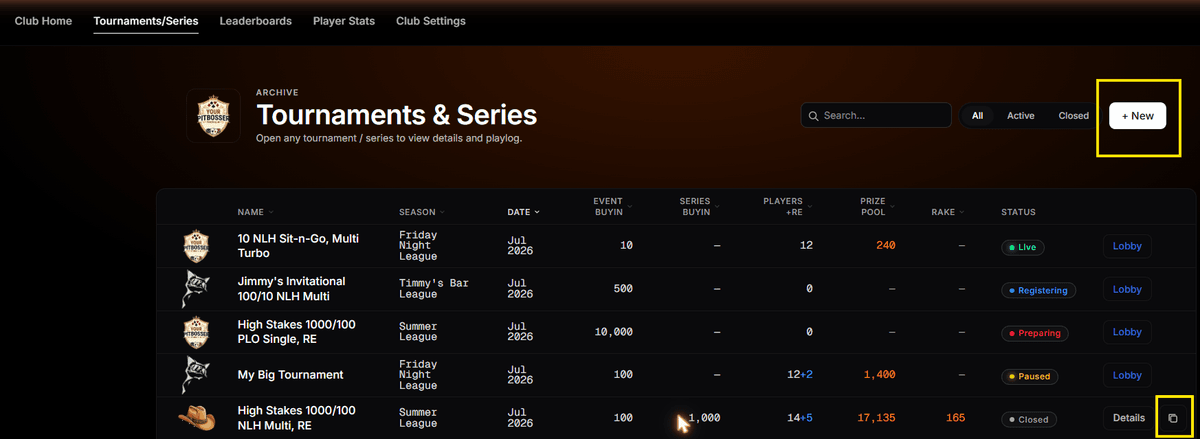
Read the columns left to right and you know the whole history at a glance:
- Name / Season — what it was called and which league it belonged to.
- Event buy-in — the cost to enter one tournament. Series buy-in — a separate, series-wide fee that only applies to multi-event series (more on that below); a single tournament shows a dash.
- Players +RE — how many entered, plus re-entries.
14+5means 14 players and 5 re-entries fired on top. - Prize pool and Rake — the money that went to the players, and the cut (if any) taken off the top.
- Status —
Live,Registering,Preparing,Paused, orClosed. Anything not closed still has a blue Lobby link so you can jump back into setup; closed events show Details instead. - Duplicate icon — Shortcut to setup new series with the settings from already finished one.
To build a new one, click + New in the top right, or Duplicate settings from finished one. That drops you at /series/new/lobby.
The lobby, top to bottom
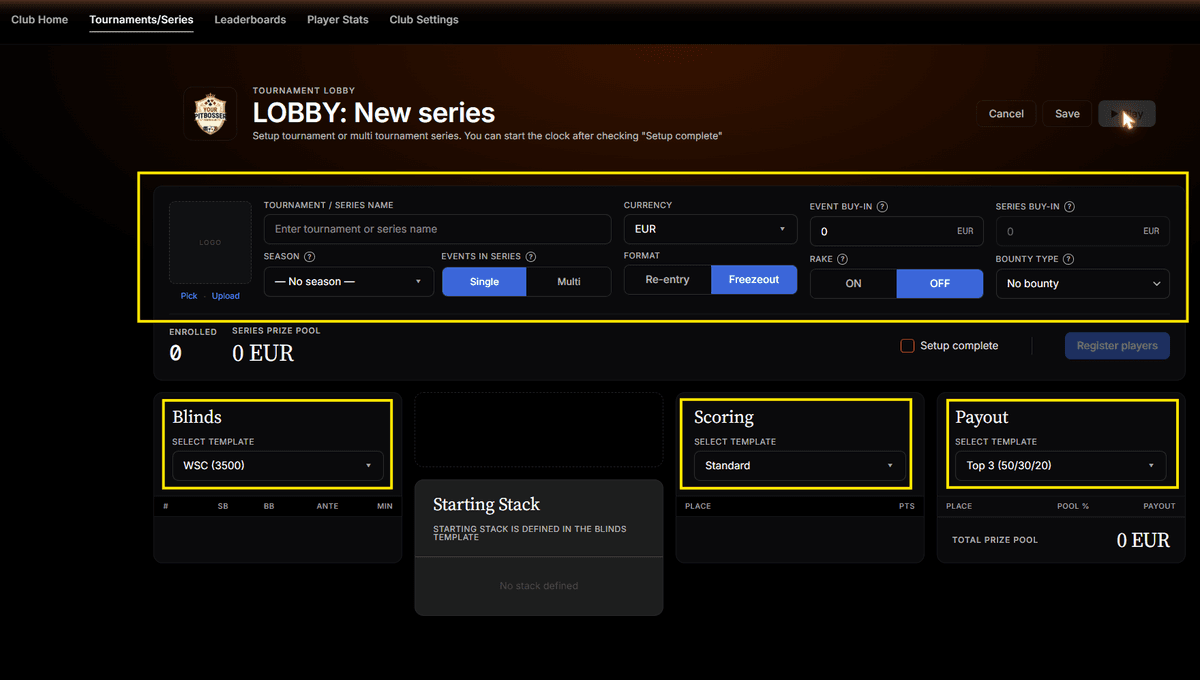
The lobby has two zones, and it's worth knowing the split before you touch anything:
- The identity bar (the top block) — the name, currency, buy-ins, season, format, rake, and bounty. This is what kind of event you're running.
- The three setup cards (the bottom row) — Blinds, Scoring, and Payout. This is how the event actually plays and pays.
You fill in the identity bar, pick a template in each card, tick one checkbox, add players, and press Play. That's the entire job. We'll do it in that order.
Step 1 — Name, currency, and buy-in
Start in the top-left field, Tournament / Series Name. Type whatever your players will recognize on the standings screen. For this walkthrough it's Thursday Night 100 NLH. You can upload tournament logo or pick one of the previously used logos.
Then Event Buy-in — the cost to play. We'll set it to 100.
Leave Series Buy-in blank. It only matters for a multi-event series, and we're building a single tournament.
Step 2 — Season, format, rake, and bounty
Season attaches this event to a league so the result rolls into a season-long leaderboard. Click the dropdown and pick one — here, 2026 · Summer League.
Events in Series — Single vs Multi. This is the toggle that decides whether you're building one tournament or a series:
- Single — one tournament. That's this walkthrough.
- Multi — a series of several tournaments under one banner, with a shared series buy-in and combined standings across all the events. When an event / tournament is completed, you can decide to spin-up the next one or decide to finish the series.
Format — Re-entry vs Freezeout. A freezeout means one life: bust and you're done. Re-entry means a busted player can buy back in and fire another bullet. We'll leave it on Freezeout.
Rake — ON / OFF. Rake is the cut the house keeps before paying the prize pool. Left OFF, every cent of every buy-in goes to the players — which is why our 14 × 100 will land on a clean 1,400 with nothing shaved off.
Bounty Type. A bounty is a points reward for reaching predefined goal (e.g. knocking a specific player out). We'll leave it at No bounty.
Step 3 — The three setup cards
Now the bottom row. Each card is a dropdown that loads a saved template, so you're picking a pre-built structure, not typing rows by hand.
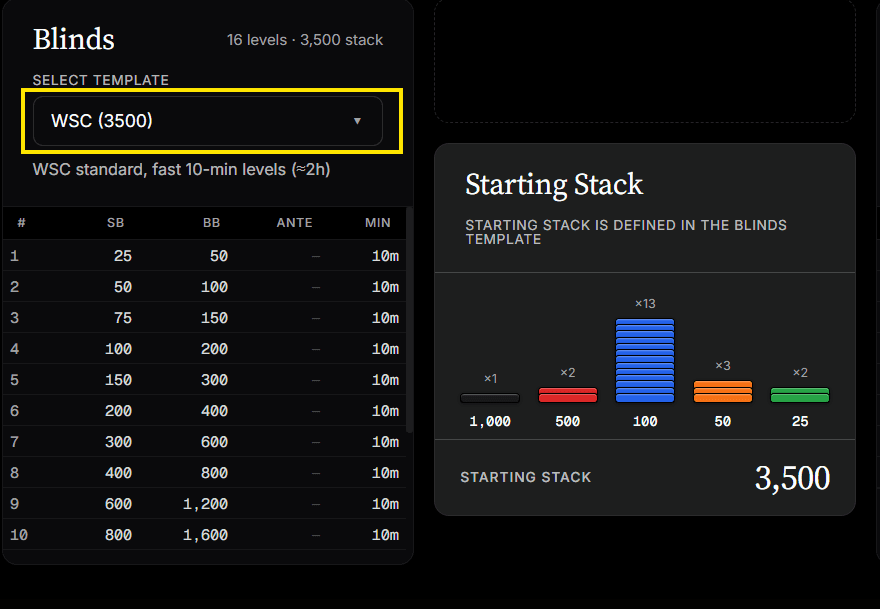
Blinds. Pick a blind structure — the schedule of rising blinds and antes that paces the game. Selecting one, say WSC (3500), instantly fills the card: the header reads 16 levels · 3,500 stack, and the table below lists every level (level 1 is 25/50, level 2 is 50/100, and so on).
Starting Stack. You don't set this separately — it's defined by the blind template, which is why the card says so. The little bar chart shows the chip denominations that add up to the starting stack (here, 3,500).
Scoring. This is the card that decides how a finish converts into leaderboard points. Select one of the predefined or custom templates (you can edit them in Club Settings) We'll keep Standard for this run.
Payout. How the prize pool splits. Select one of the predefined or custom templates (you can edit them in Club Settings). We'll keep Top 3 (50/30/20): pays first, second, and third 50%, 30%, and 20% of the pool. The amounts read as 0 EUR for now — that's expected. The Scoring and Payout cards can't show real numbers until players are enrolled, because both scale with the field. That happens in two steps.
Step 4 — Tick "Setup complete"
Find the Setup complete checkbox on the right, above the cards, and tick it. This one click does four things at once:

- Saves the tournament — the address bar switches from
/series/new/lobbyto a real event ID. It exists now. - Locks the configuration — the fields grey out, so you can't fat-finger the buy-in mid-event. (A Cancel and a red Close series button appear up top if you need to back out.)
- Fills in the previews — Scoring now shows the real points table: 8 places, paying
1st = 10, 2nd = 8, 3rd = 6 … 8th = 1, for a Total Points Pool of 39 pts. Payout shows 3 places at 50/30/20. - Opens registration — the Register players button lights up.
If you need to change a setting after this, just untick the box, edit, and tick it again.
Step 5 — Register players
Click Register players. A panel opens with your club's roster, each with an avatar and name, plus a search box for big lists.
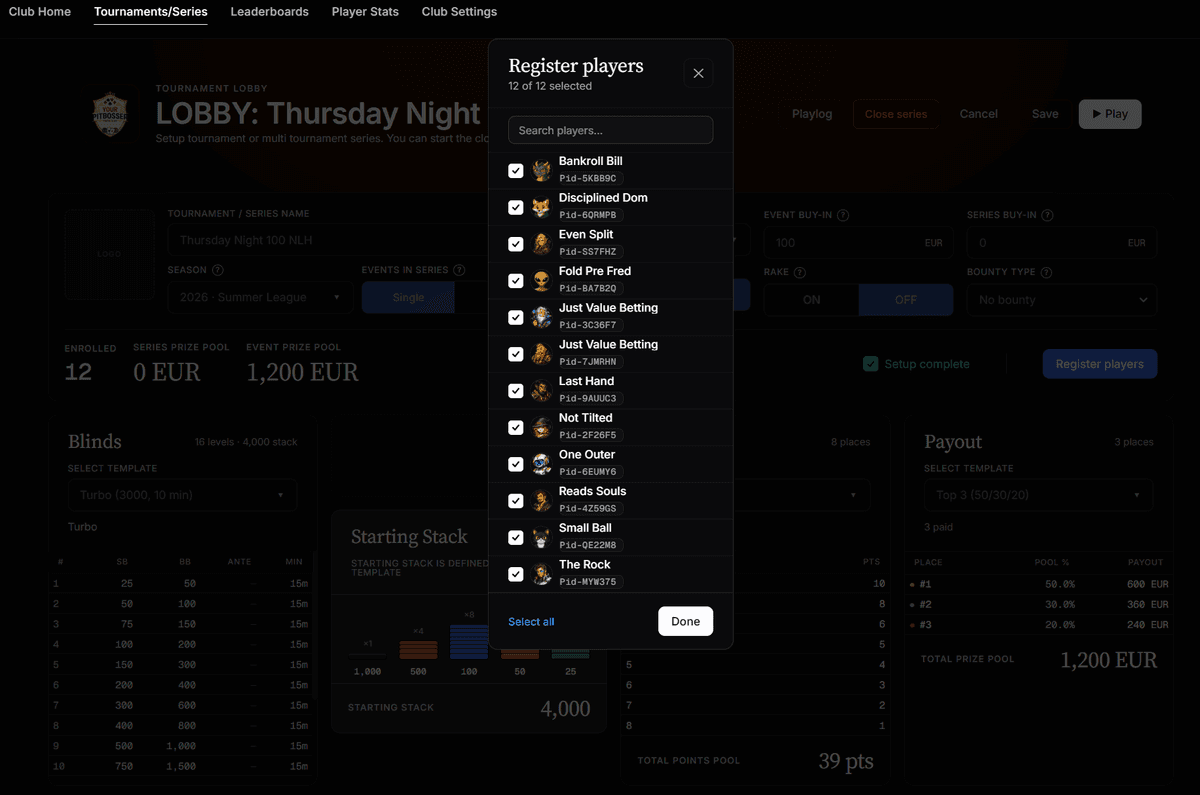
Tick the players who are in the room, or hit Select all to add the whole roster at once. Watch the numbers behind the panel move in real time as you select — this is the moment the abstract setup becomes a real prize pool. Then click Done.
Here's the arithmetic you set up in Step 1, now paid out in full:
- Enrolled: 12, buy-in 100, rake off → Event Prize Pool: 1,200 EUR (12 × 100, nothing shaved).
- Payout, Top 3 (50/30/20): 1st
1,200 × 0.50 = 600, 2nd1,200 × 0.30 = 360, 3rd1,200 × 0.20 = 240. Those three add back to 1,200.
With players in, the ▶ Play button in the top-right goes solid. That's your green light.
Step 6 — Hit Play
Click ▶ Play. The lobby closes and the live clock takes over the screen — the destination we've been building toward.
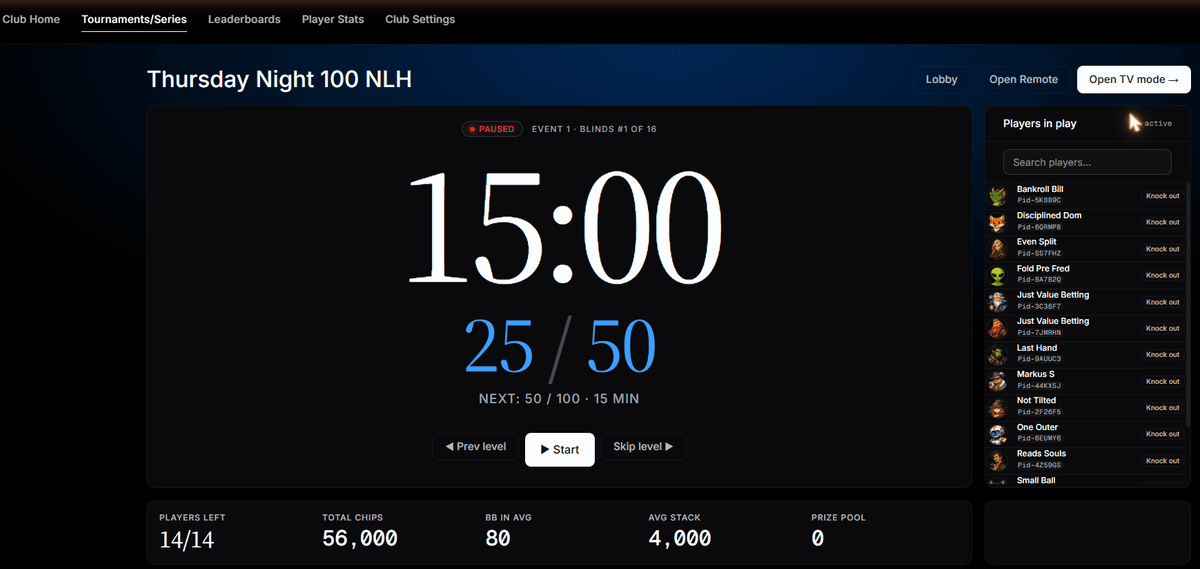
Everything you configured is now on one screen:
- The clock reads
15:00, the first level's length, and it's Paused — set up and start are deliberately separate, so nothing runs until you say go. - The blinds show
25 / 50, withNEXT: 50 / 100 · 15 MINunderneath so the table always knows what's coming. - Players in play lists all 12 down the right, each with a Knock out button for when they bust.
- The stat strip does the live math. All of it recalculates as the night goes on and players get eliminated.
- Open TV mode → opens a separate window you can throw onto a connected television in the room.
Press the central Start button and the clock counts down. The tournament is live. That's the whole loop — from an empty lobby to a running event.
FAQ
What's the difference between a tournament and a series?
A tournament is one event; a series is several events grouped together. You choose which you're building with the Single / Multi toggle in the lobby — Single is one tournament, Multi bundles multiple events under a shared series buy-in and combined standings. The setup screens are otherwise identical.
Do I have to set the starting stack myself?
Well, Yes and No. The starting stack is defined in the by the blind template you pick. If you assign a specific chipset to particular blind template, Pitbosser will show starting stack with chip denominations. Choose a different structure and the stack changes with it.
Can I still change settings after ticking "Setup complete"?
Yes. Ticking the box locks and saves the configuration so nothing changes by accident mid-event, but untick it and every field is editable again. Tick it once more when you're done.
What does hitting Play actually do?
It closes the lobby and opens the live clock, paused at the first level. Nothing counts down until you press Start — Play sets the table, Start drops the cards.
Key takeaways
- The flow is fixed and short:
/series→ + New → fill the lobby → Setup complete → Register players → Play. - The identity bar is what you're running; the three cards are how it plays and pays. Name, buy-in, and format up top; Blinds, Stack, Scoring, and Payout below.
- Single vs Multi is the one toggle that turns a tournament into a series.
- "Setup complete" is the pivot: it saves the event, locks the config, fills the previews, and opens registration.
The point was never the number of clicks. It's that once the buy-in, the blinds, and the payout are set once, the prize pool, the points, and the average stack keep themselves current for the rest of the night — the bookkeeping that used to turn a spreadsheet into a second job.
Set it up once, press Play, and go host.
Pitbosser is poker tournament software for clubs and home leagues. The clock, the knockouts, the standings — handled.