How to Invite and Manage Poker Club Members
How to Invite and Manage Poker Club Members
It's Thursday, twenty minutes before the first hand, and a friend of a friend walks in with a twenty in his hand and a nickname nobody has typed yet. Call him River Rat. Before he can sit down, he has to exist: on the clock, on the TV and, at the end of the night, on the standings.
The whole idea in one sentence: adding a member to your poker club takes one name and ten seconds, almost everything about them can be changed later, and exactly one button can't be undone.
This walkthrough follows the video below. It covers inviting a player or a director, what the invite email looks like, editing a member, and adding someone from a tournament lobby mid-registration. Every screenshot is the real app.
Where members live: Club Settings → Members
Open Club Settings, then pick Members in the menu on the left. That's your roster: everyone in the club, with their role (Player or Director), their status, and an Edit button next to each name.
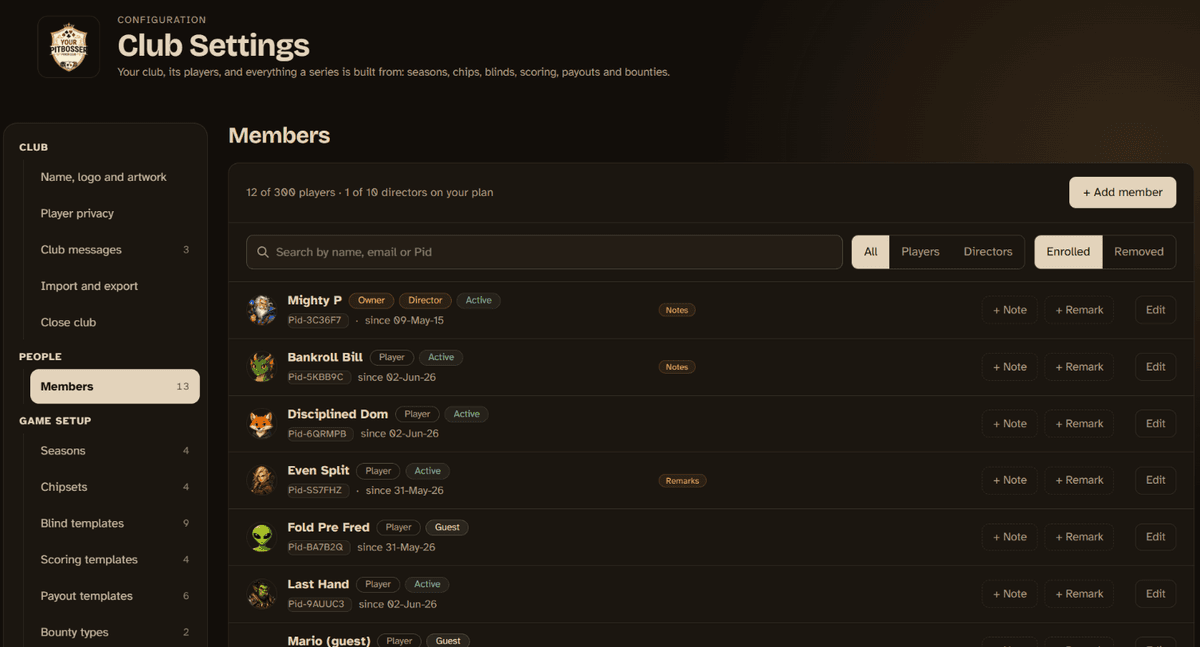
To add someone, click + Add member in the top right. A short form opens on the same page.
Adding a player: one name is enough
The form starts on Player. Only one field is required:
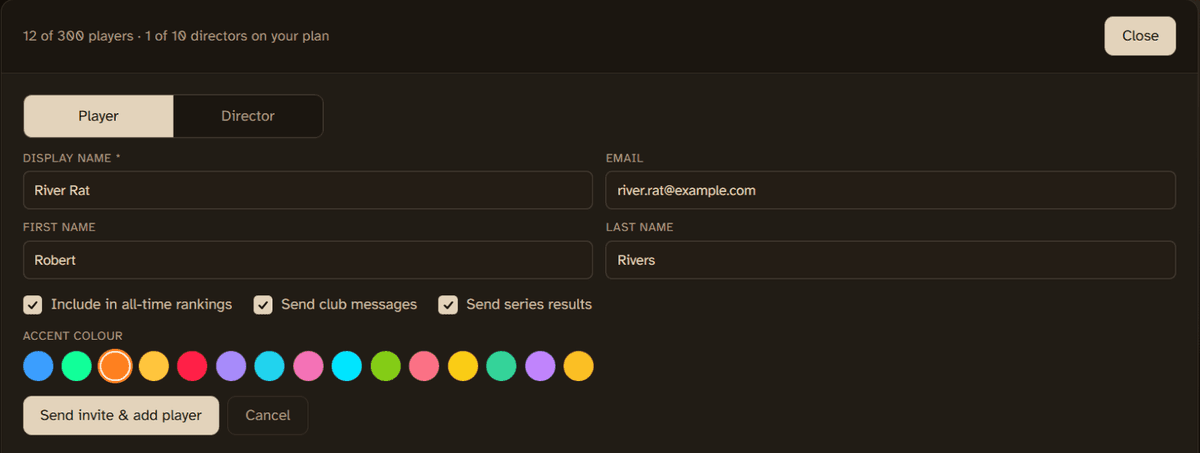
- Display name: the only must. It's the name on the clock, the TV and the leaderboards, so a nickname like
River Ratis exactly right. - Email: optional, but it decides what the player can do. With an email, they get an invite and can log in to read club messages and see leaderboards and stats. Without one, they still play and still score. They just can't log in.
- First name and last name: optional too.
That split is deliberate. A guest who shows up once doesn't need an account; a regular who wants to check whether they've finally passed Bankroll Bill does.
Three defaults worth a second look
Under the name fields sit three checkboxes, all ticked:
- Include in all-time rankings. Untick it for a guest. They still see their own stats, but they don't count on the club's leaderboards.
- Send club messages. News and announcements from the club.
- Send series results. The results email after each series they played.
Then pick an accent colour, the colour that marks this player in the app, and press the button. With an email it reads Send invite & add player; without one, just Add player.
Adding a director: all four fields, no exceptions
Switch the form to Director and every field becomes required: display name, email, first name and last name. The button stays grey until all four are filled in.
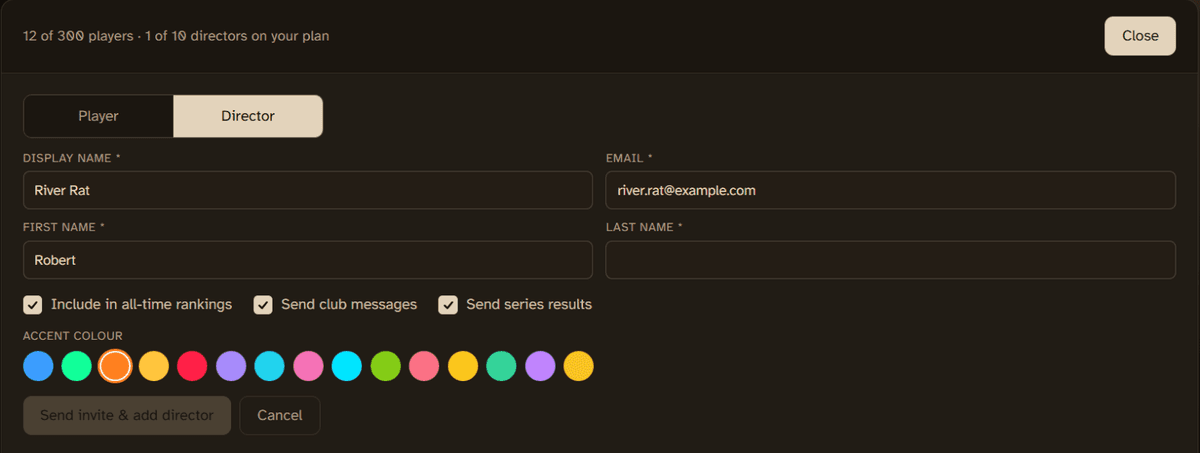
The reason is simple. A director isn't a name on a leaderboard. A director is someone with the keys.
A player plays. A director runs the night.
A player plays in tournaments and follows the club's messages, leaderboards and stats. A director can do all of that, and can also set up tournaments and series, run the clock, record knockouts, bounties and points, and add and manage members. Hand that out the way you'd hand out the key to the chip case.
What the invite looks like
If you gave the player an email, the invite goes out the moment you press the button. It comes from Pitbosser and names your club:
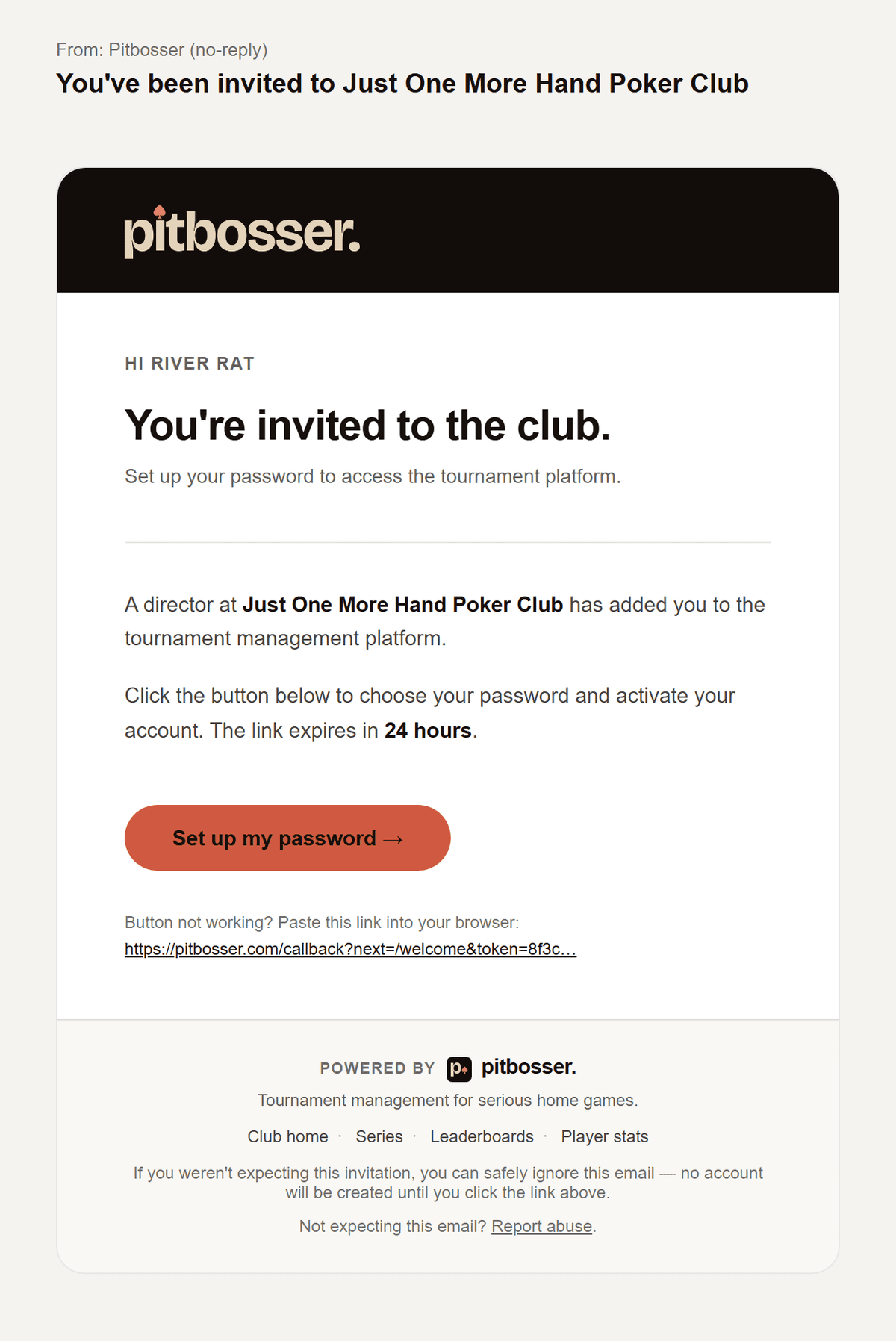
Set up my password opens their account. The link works for 24 hours.
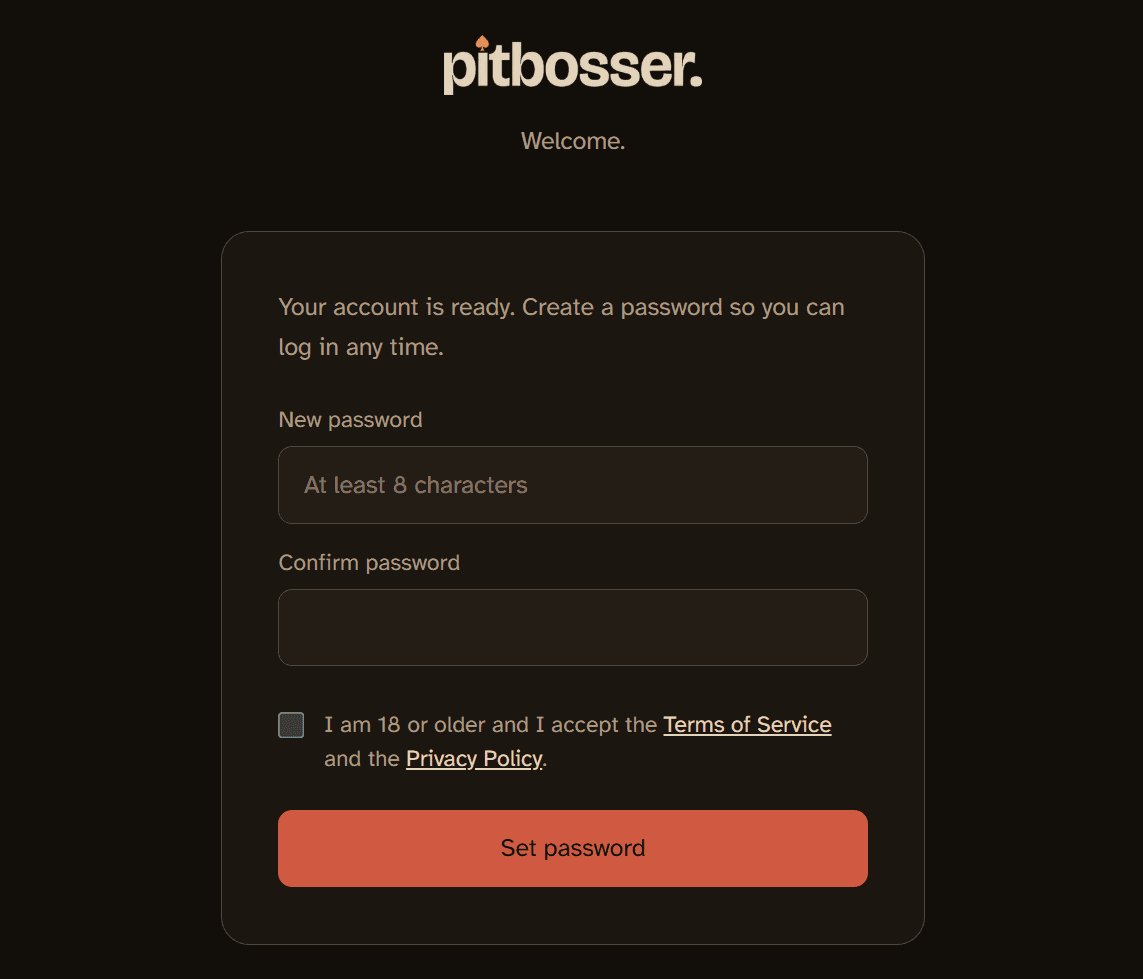
The link opens a single page where they choose a password and tick the terms box. That's the whole sign-up.
Two details people ask about:
- Their avatar. They add it themselves later, on their Profile page. You can also upload one for them (see Edit, below).
- Already on Pitbosser? If the email belongs to someone who already has an account, say from another club, they get an invitation to accept instead. They show as Pending on your list until they do.
Editing a member
Press Edit next to any name. The panel that opens holds their details, their accent colour and their message settings. Click the avatar to upload a new photo.
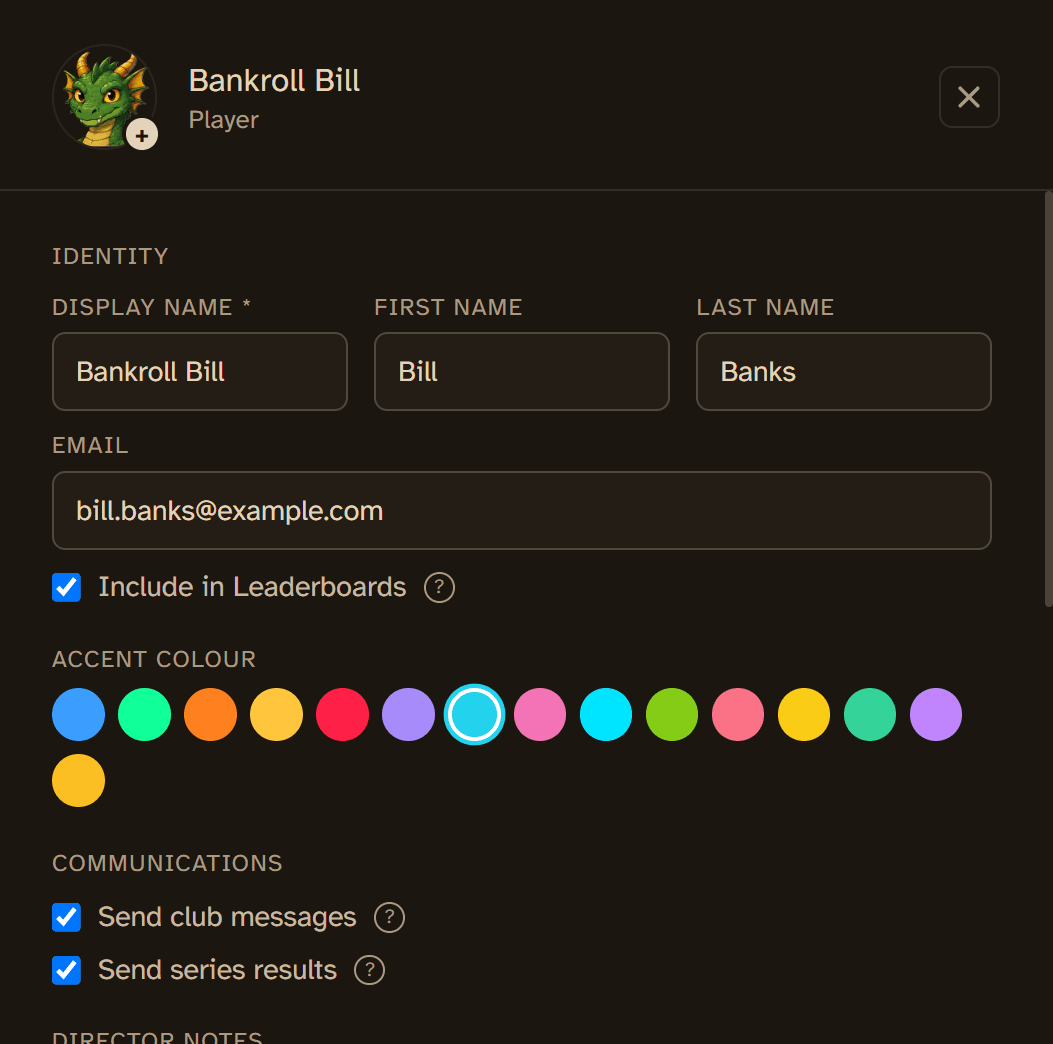
Members of more than one club are the exception. If someone also plays in another club, their name, photo, email and colour are theirs to change, not yours, so those fields are locked. One person, one identity, no matter how many Thursday games they play in.
Notes and remarks only directors see
The Edit panel also holds notes and remarks, private to directors. You can write them there, or straight from the list with the + Note and + Remark buttons. Once a member has one, a small Notes or Remarks pill appears next to their name. Hover it to read.
The player never sees them. "Prefers the seat by the window" and "owes 20 from March" are both fair game.
Promote, reset, suspend
At the bottom of the Edit panel are three controls that change what a member can do:
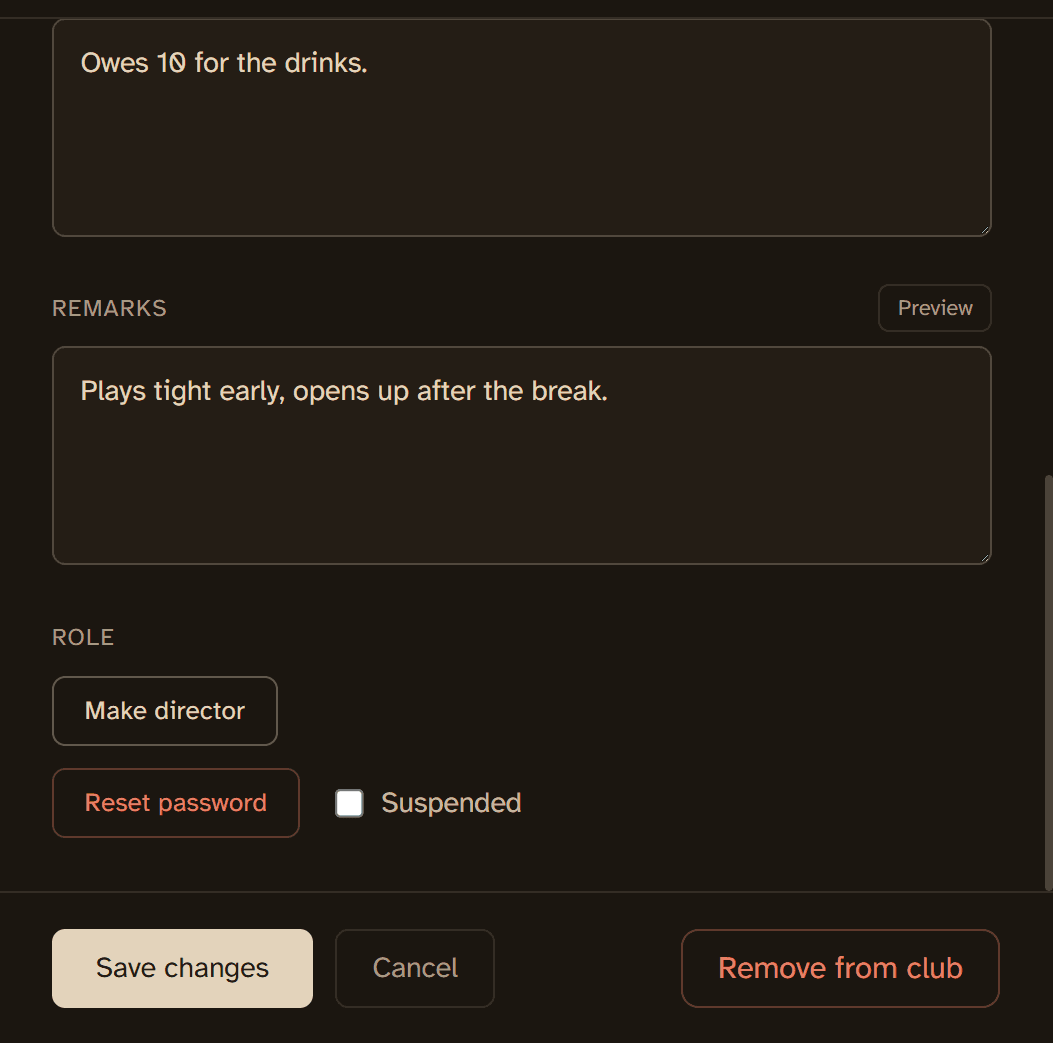
- Make director promotes a player. Like adding a director, it needs all four name and email fields.
- Reset password emails them a link to choose a new one. It only works for members with an email.
- Suspended bars them from play. Nobody can register a suspended member for a tournament until you untick it, and they drop out of the Register players list in the lobby.
All three can be reversed. Demote, unsuspend and carry on.
The one button you can't undo: Remove from club
Remove from club is for someone who has actually left. Here's the catch: it can't be undone. To bring them back, you invite them again.
What it doesn't do matters just as much:
- Their history stays. Past results and stats remain in the standings. Removing a player doesn't rewrite last season.
- Their other clubs aren't touched. Removing someone from your club removes them from your club, and nothing else.
- It waits for unfinished business. Removing and suspending are both blocked while the player is in a series that hasn't finished. Close the series first.
Adding a member from the lobby
Back to River Rat, twenty minutes before the first hand. You don't need to leave the tournament to add him. In the lobby, open Register players, then press + Add club member.
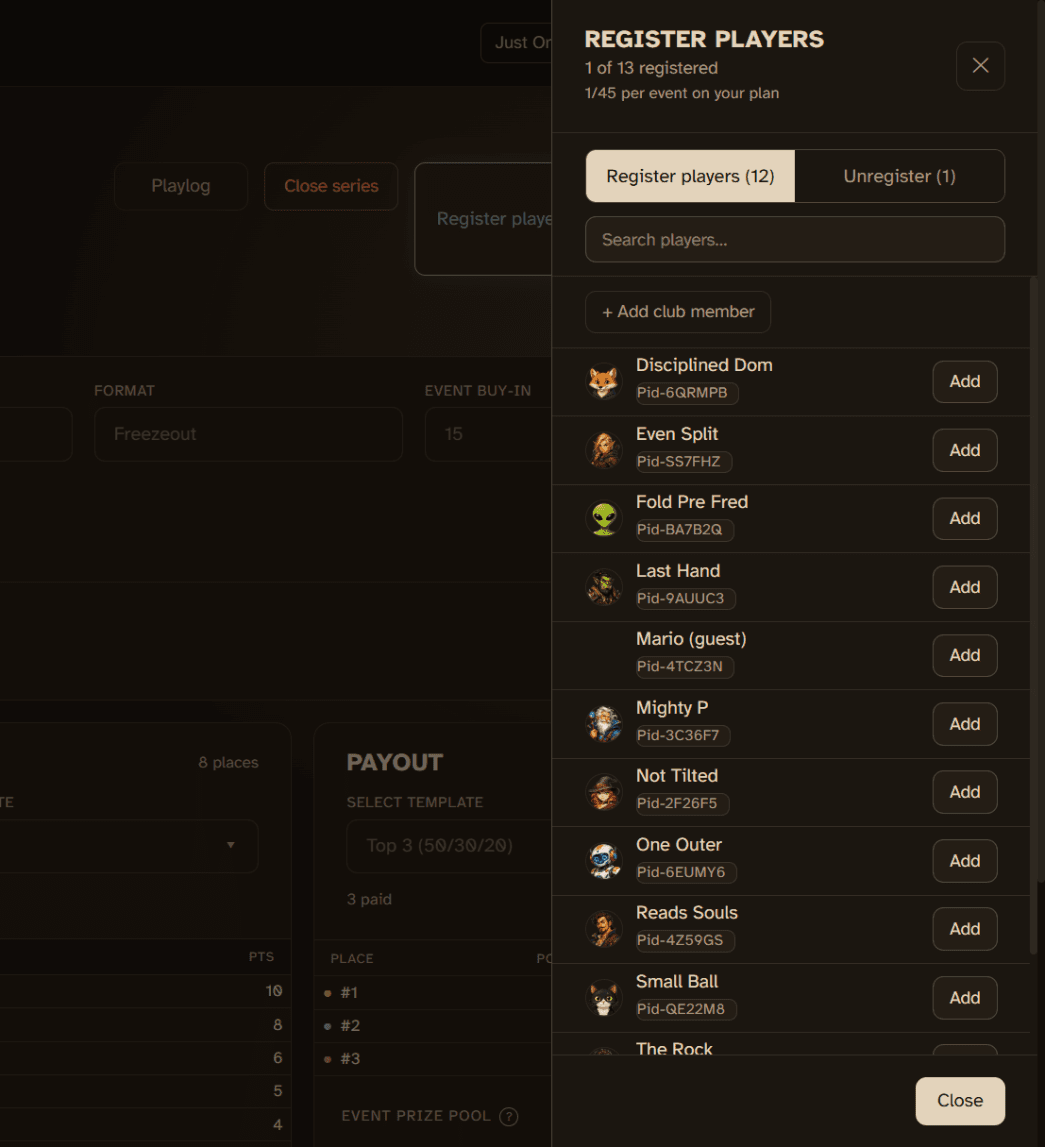
It opens the same form you saw in Club Settings. One thing to know: he joins the club, not the tournament. Once he's on the list, press Add next to his name to register him for tonight.
FAQ
Do my players need an email address?
No. A display name is enough to play and score. Without an email, a player can't log in, so they won't see club messages, leaderboards or stats themselves. You can add an email later in Edit.
Why does a director need all four fields?
Because a director can set up tournaments, run the clock and manage members. A real name and a working email on every account with those powers keeps the club accountable.
What happens to a player's results if I remove them?
They stay. Past results and stats remain in the standings, and the player keeps their memberships in any other clubs. Only their access to your club ends.
What's the difference between suspending and removing?
Suspending is a pause: they stay in the club but can't be registered for a tournament until you untick it. Removing is final: they leave the club, and the only way back is a new invite.
Can players see the notes I write about them?
No. Notes and remarks are visible to directors only.
Key takeaways
- A player needs one field: a display name. Email is what lets them log in.
- A director needs four: display name, email, first and last name.
- The invite is one email with a 24-hour link to set a password. Existing Pitbosser users get an invitation to accept and show as Pending.
- Edit holds everything else: details, photo, private notes and remarks, Make director, Reset password, Suspended.
- Remove from club is the only one-way door. History stays, other clubs aren't touched, and a new invite brings them back.
- You can add members from the lobby too, without leaving the tournament.
The point isn't the software. It's that the roster stops being a list someone keeps on their phone and becomes the same list the clock, the TV and the standings all read from. River Rat gets typed once, and from then on he's just there.
One name to add them, one panel to change them. Then deal the cards.
Pitbosser is poker tournament software for clubs and home leagues. The clock, the knockouts, the standings — handled.